InputLeap
Read our comprehensive review of InputLeap, the open-source utility that lets you share one mouse and keyboard across multiple computers seamlessly.
A Seamless Way to Share One Mouse and Keyboard Across Multiple Computers
Managing multiple physical machines on one desk often leads to cluttered workspaces, tangled wires, and the constant frustration of switching between different hardware. The InputLeap share mouse and keyboard utility offers an elegant, software-based solution to this exact problem. Developed by the Input Leap Team, this open-source application allows you to control several computers over a local network using just a single input setup, eliminating the need for physical KVM hardware switchers.
How the InputLeap Share Mouse and Keyboard Solution Works
Unlike hardware switches that require you to press physical buttons, this utility operates smoothly over your local network. It allows your cursor to transition from the edge of one monitor directly onto the screen of an entirely different computer, regardless of the operating system. When you move your mouse cursor to a secondary screen, your keyboard focus automatically shifts along with it, allowing you to type on whichever machine your cursor currently resides on.
Key Features and Capabilities
- Multi-Platform Compatibility: Work seamlessly across Linux, Windows, and macOS environments without platform-specific restrictions.
- Network-Based Control: Share your peripherals over a standard local network connection without requiring extra USB cables.
- Decluttered Workspace: Reclaim valuable desk real estate by storing extra keyboards and mice away.
- Smooth Transitioning: Move your pointer across screens naturally, as if they were all connected to a single machine.
Who is InputLeap For?
This tool is ideal for software developers, system administrators, creative professionals, and power users who operate multiple workstations simultaneously. If you have a dedicated Linux machine alongside a separate workstation for other tasks, the InputLeap share mouse and keyboard system bridges the gap between those environments, making multitasking feel completely native and fluid.
Setting Up Your Unified Desktop
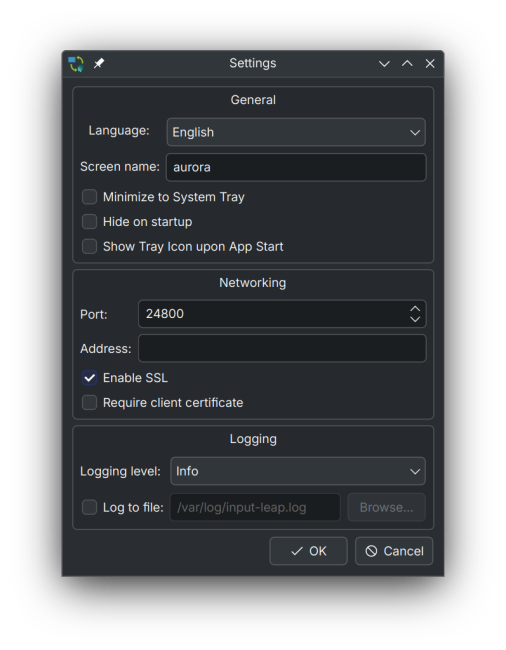
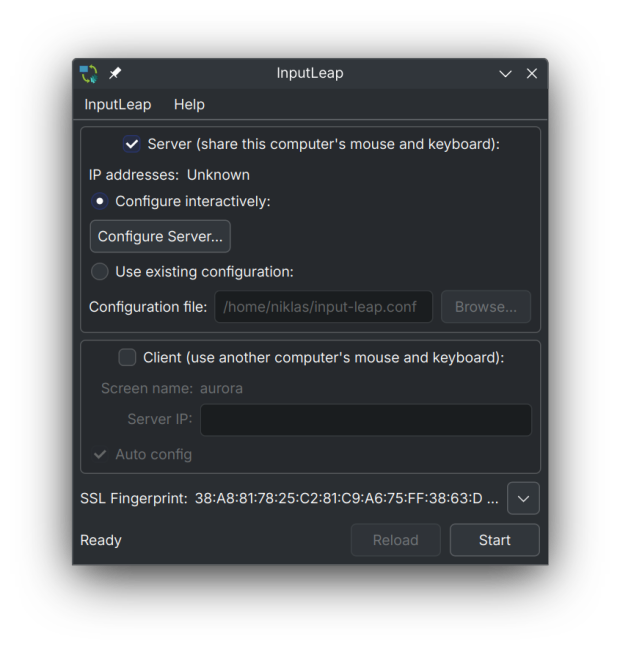
To establish your unified workstation, you will need to configure one machine as the primary server (the computer with the physical keyboard and mouse plugged in) and the other machines as clients. Once configured over your local network, your workflow transitions from fragmented to cohesive. To experience this streamlined workspace setup for yourself, head over to the official Flathub store page to find out more and get started.